Documents
Upload proposals, contracts and other files to Salefy, find them again by name or content, and link them to the companies they belong to.
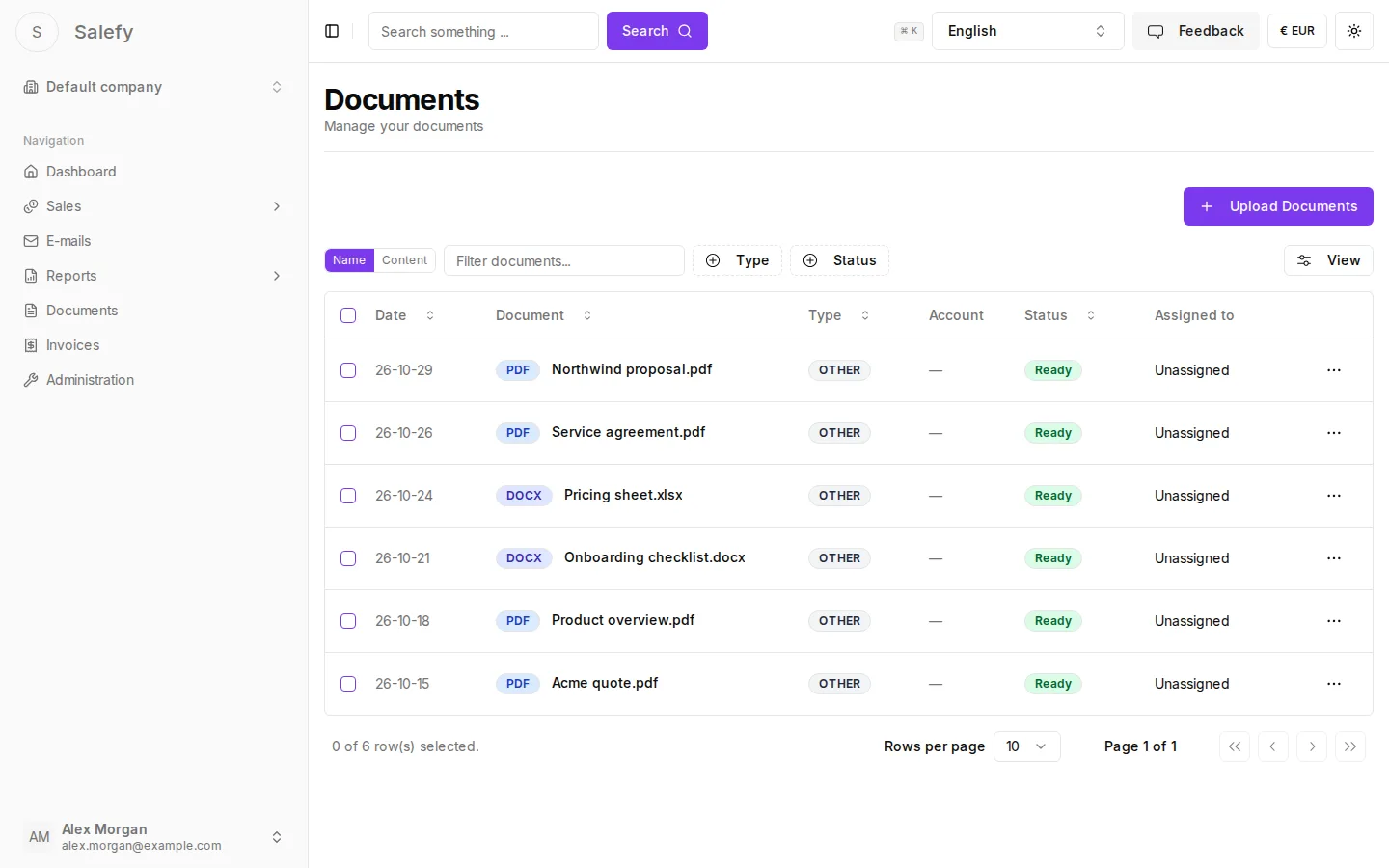
Open Documents in the sidebar. The table lists documents with their Date, Document name, Type, Account, Status and Assigned to.
Upload documents
Click Upload Documents.
Drop files into the dialog or click to browse. You can add several files at once. Accepted formats are PDF, DOCX, DOC, TXT and images, up to 64 MB each.
Click Upload All. Each file shows its progress and then Uploaded.
Before uploading, Salefy checks whether the same file already exists. If it does, you choose Upload anyway or Skip.
To upload straight to a company, open the company and use Upload Documents in its Documents card. Those files are linked to the company automatically.
Processing
After upload, each document is processed in the background. The Status column shows where it is:
| Status | Meaning |
|---|---|
| Pending | Waiting to be processed. |
| Processing | Text is being read from the file. |
| Ready | Done. A summary and type are available. |
| Failed | Processing did not finish. |
If a document shows Failed, open Details and click Retry.
Find a document
- Filter the table by name: choose Name and type into Filter documents....
- Search names and summaries: choose Content and type into Search in names & summaries....
- Narrow the list with the Type and Status filters. Click Reset to clear them.
- Press ⌘K (Ctrl+K on Windows and Linux) anywhere and type at least two characters. Matching documents appear in the command menu.
View a document
Open the row menu and choose Details to see the status, summary, type, version, creation date, linked company and version history, or View File to open the file itself.
Work with several documents
Select documents with the checkboxes in the first column. An action bar appears with:
- Link to Account: link the selected documents to a company.
- Change Type: set the type to Receipt, Contract, Offer or Other.
- Delete: delete the selected documents.
Deleting a document removes it and its file permanently. It cannot be restored.
Documents on records
Companies, contacts, leads and opportunities each have a Documents card listing the documents linked to them.