Activities and tasks
Log calls, meetings, visits, notes and emails on your records, and track follow-up tasks on each company so no deal goes quiet.
Activities
Companies, contacts, leads, opportunities and contracts each have an Activities card on the Overview tab. It lists the record's calls, meetings, visits, notes and emails, newest first. Click Load more to see older ones.
Log an activity
On the record page, click Log activity.
Choose a Type: Call, Meeting, Visit, Note or Email.
Enter a Title * and a Date & Time *.
Set the Status: Scheduled, Completed or Cancelled. Calls, meetings and visits start as Scheduled, notes and emails as Completed.
Fill in the extra fields for the type: Duration (minutes) and Outcome for calls, meetings and visits, Email Subject for emails. Add Notes if needed.
Click Log activity.
To change an activity, click the pencil icon, edit the fields and click Save changes. A common case is setting a finished call to Completed and filling in the Outcome.
To remove an activity, click the trash icon and confirm Delete in the Delete activity? dialog.
You can edit and delete activities you created. Managers and admins can edit and delete any activity.
If your company uses account protection, completed visits and meetings on a company keep it protected.
Company tasks
Tasks are follow-ups attached to a company. They appear on the Tasks card of the company page, under Sales → Companies. Contacts, leads and opportunities have no tasks of their own, so add the task to the company they belong to.
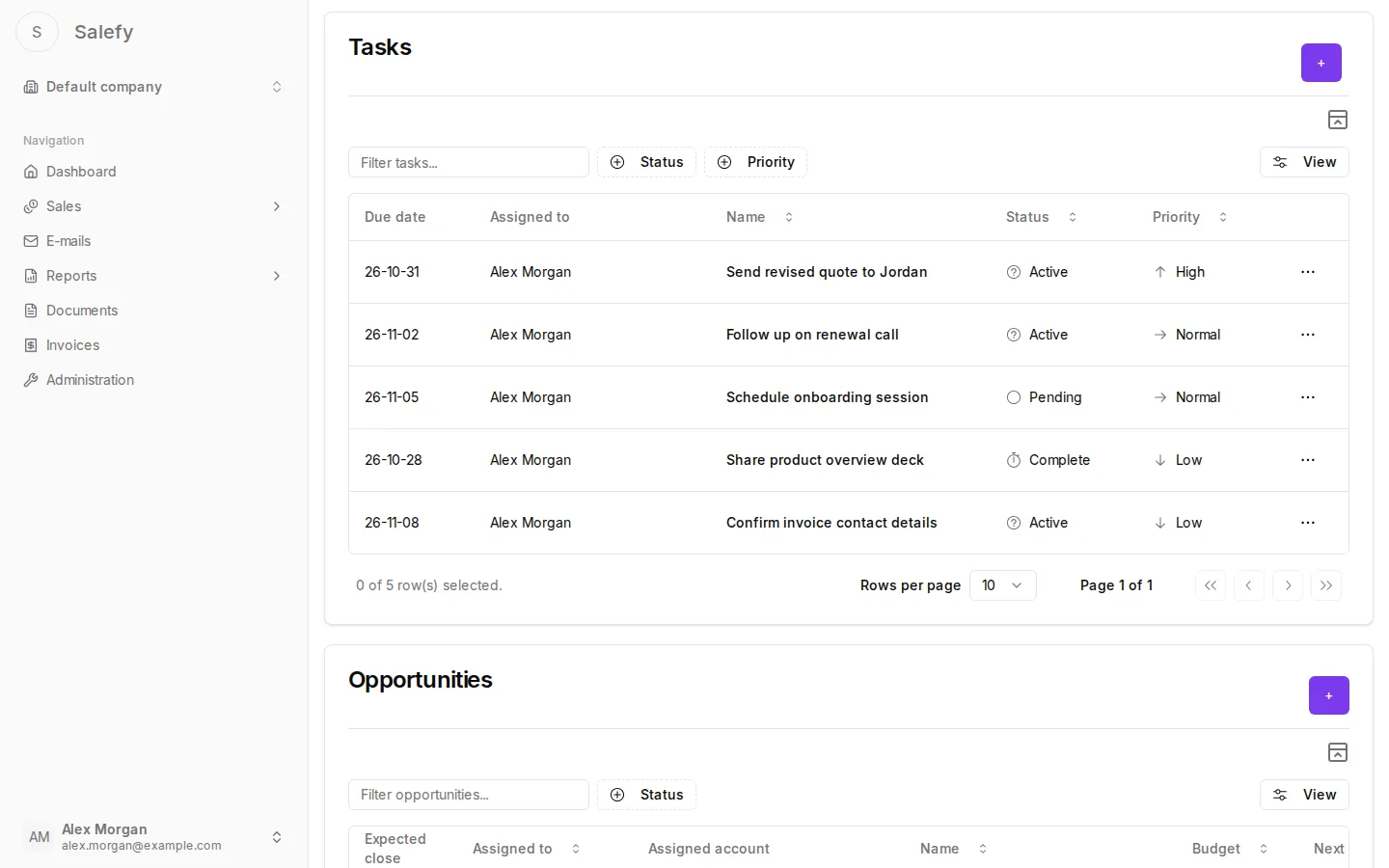
Create a task
Open the company and click + on the Tasks card.
In Create new Task, fill in New task name, Task description and Task due date.
Choose Assigned to and a priority under Choose task priority: Low, Medium, High or Critical.
Click Create.
In a task's row menu, View opens the task and Delete removes it. The task page shows the task details, attached documents and a Team conversation. To comment, type in Your comment ... and click Add.
Find your own tasks
Sales → My Dashboard lists your tasks under My Tasks, with their priority and status, next to My Leads and My Opportunities. It also counts Total Tasks and Open Tasks. The Activity report shows overdue tasks and tasks by assignee.
Leads and opportunities
Track potential customers as leads, move deals across the pipeline, build quotes with line items, and get quotes approved by a manager.
Documents
Upload proposals, contracts and other files to Salefy, find them again by name or content, and link them to the companies they belong to.