Leads and opportunities
Track potential customers as leads, move deals across the pipeline, build quotes with line items, and get quotes approved by a manager.
A lead is a person or company that might buy. An opportunity (a deal) is a specific sale you are working on, linked to a company.
Add a lead
Go to Sales → Leads and click +.
Fill in Last name (required), and as needed First name, Company, Job title, Email, Phone, Description, Lead source and Referred by.
Set the Lead Status: New, Contacted, Qualified or Lost. Assigned to is the owner and starts as you. Use Assign an account to link the lead to an existing company.
Click Create lead.
The lead page shows the lead's details, its Activities and a History tab.
Add an opportunity
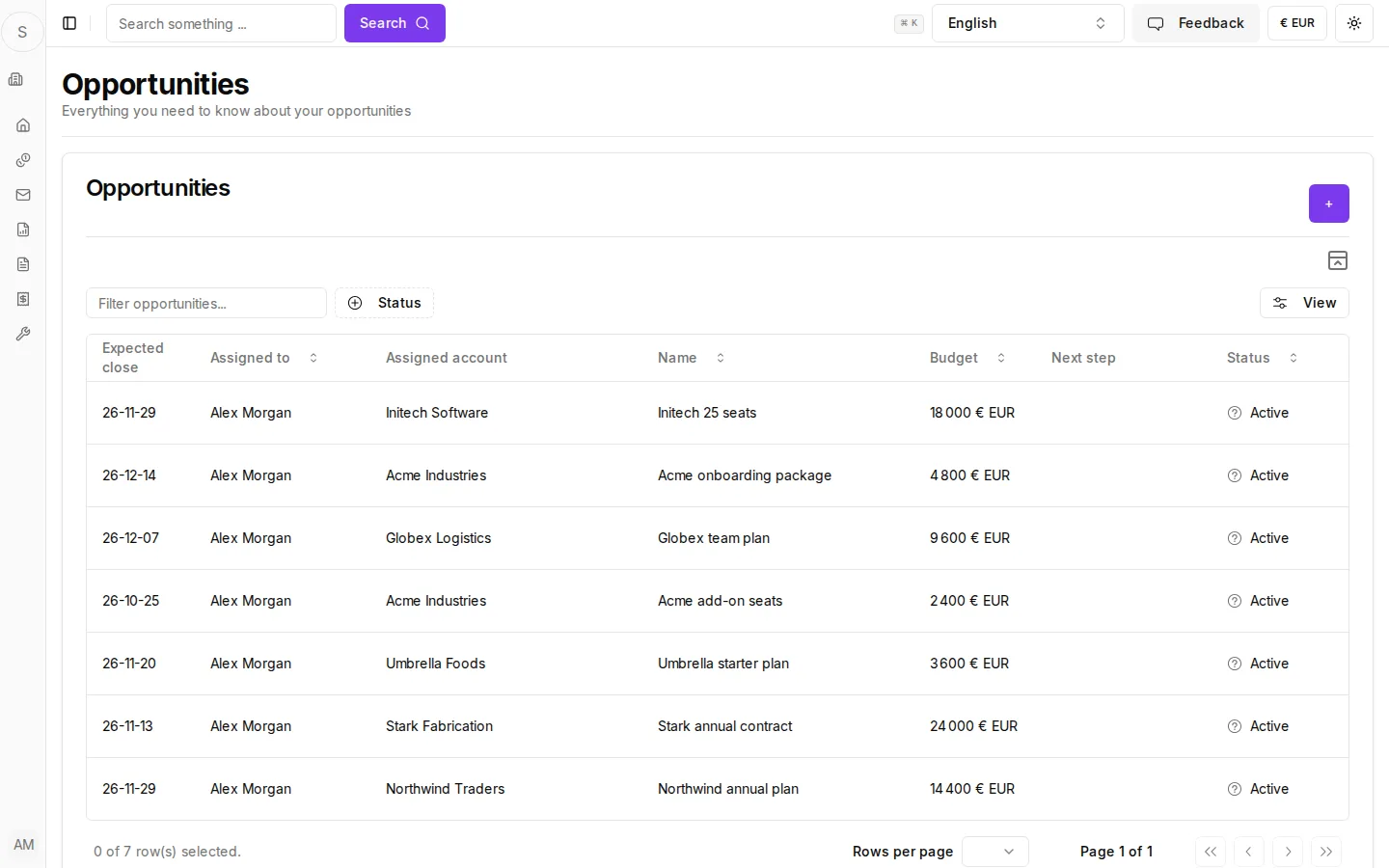
Go to Sales → Opportunities and click +. Or click + on the Opportunities card of a company page.
Fill in Opportunity name (required), Expected close date, Delivery deadline, Description, Sales type, Sale stage, Budget, Currency, Expected revenue and Next step.
Choose the Assigned Account and, if you like, an Assigned Contact.
Click Create.
The sale stages are New, Qualified, Demo, Proposal, Negotiation, Won and Lost.
The opportunity page
The Overview tab shows the deal's details, then:
- Line items: the products and services in the quote. Click + to open Add Line Item. Pick a product under Product (optional) or type a custom Name, then set Quantity, Unit Price and a Discount Type (None, Percentage (%) or Fixed Amount).
- Activities: see Activities and tasks.
- The deal's companies, contacts and documents.
The pipeline board
Sales → Dashboard shows active opportunities as cards in columns, one column per sale stage.
- Change the stage: drag a card to another column. You see "Opportunity stage changed".
- Add a deal in a stage: click the plus icon in the column header.
- Mark a deal as lost: click the thumbs-down icon on the card. You see "Opportunity has been set to inactive" and the deal moves to the Lost column.
Sales → My Dashboard lists your open tasks, leads and active opportunities under My Tasks, My Leads and My Opportunities.
Quote approval
Before a quote goes to a client, a manager or admin can sign it off.
On the opportunity page, click Request approval. All active managers and admins get an email.
The deal shows an Approval pending badge.
After the decision you get an email, and the badge changes to Approved or Rejected. Hover over Rejected to read the reviewer's note.
After a rejection, fix the quote and click Request approval again.
Approve or reject (managers and admins)
Go to Sales → Approvals. The Quote approvals page lists deals waiting for a decision.
- Click Approve to approve the quote.
- Click Reject, write what needs to change in the dialog, and click Reject quote. The note goes to the rep by email.